DiamCut Pro™
by Diam Art Ltd
Available Now

DiamCut Pro™

A virtual diamond cutter for fancy‑colored and white diamonds — shape and refine a stone on screen to bring out its maximum potential, before you commit to the actual cut.
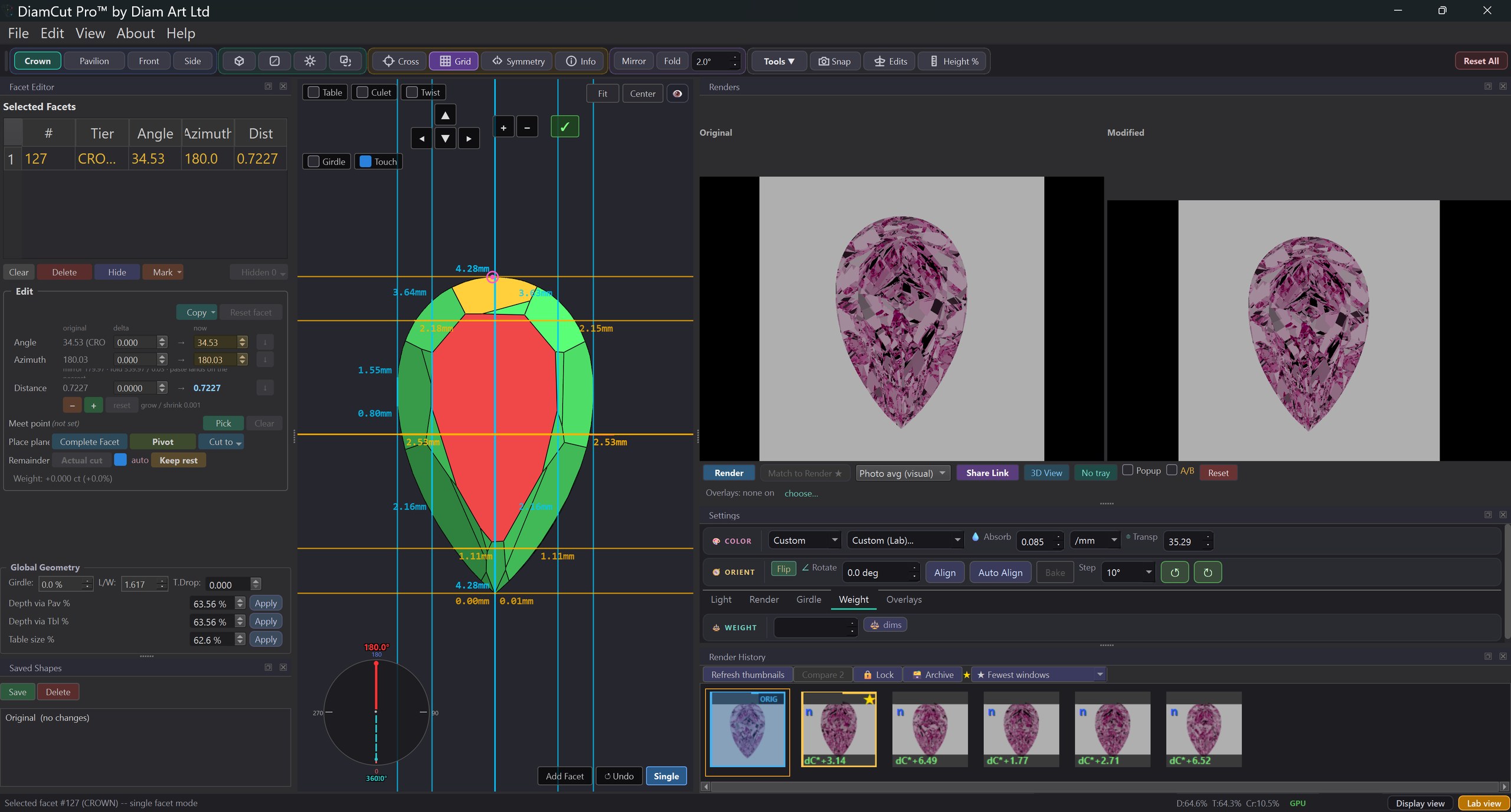
DiamCut Pro editor: a pear recut in the 3D view with original and modified renders
Who it's for

Built for the people who cut and trade stones

Diamond cutters and planners, manufacturers, and dealers working with fancy‑colored and white diamonds — anyone who wants to see a stone's best before committing to the cut.

See & improve color

Get the most color from every stone

Working for better color, or a better make? DiamCut Pro assists either way — judge every change the moment you make it, on screen, before a wheel ever touches the stone.

  • ◆ See where the stone shows its color strong — and where it washes out.
  • ◆ Compare a reworked design against the original, side by side.
  • ◆ A before / after slider to judge the gain at a glance.
  • ◆ View the stone under a choice of lighting environments.
  • ◆ Match the on‑screen stone to a reference photo of the real one.
  • ◆ A large palette of body colors, plus your own custom shades.
Edit every facet

Direct, hands‑on control of the cut

Click a facet on the 3D model and shape it exactly the way you want. Symmetry, new facets, and a live preview keep you fast and in control.
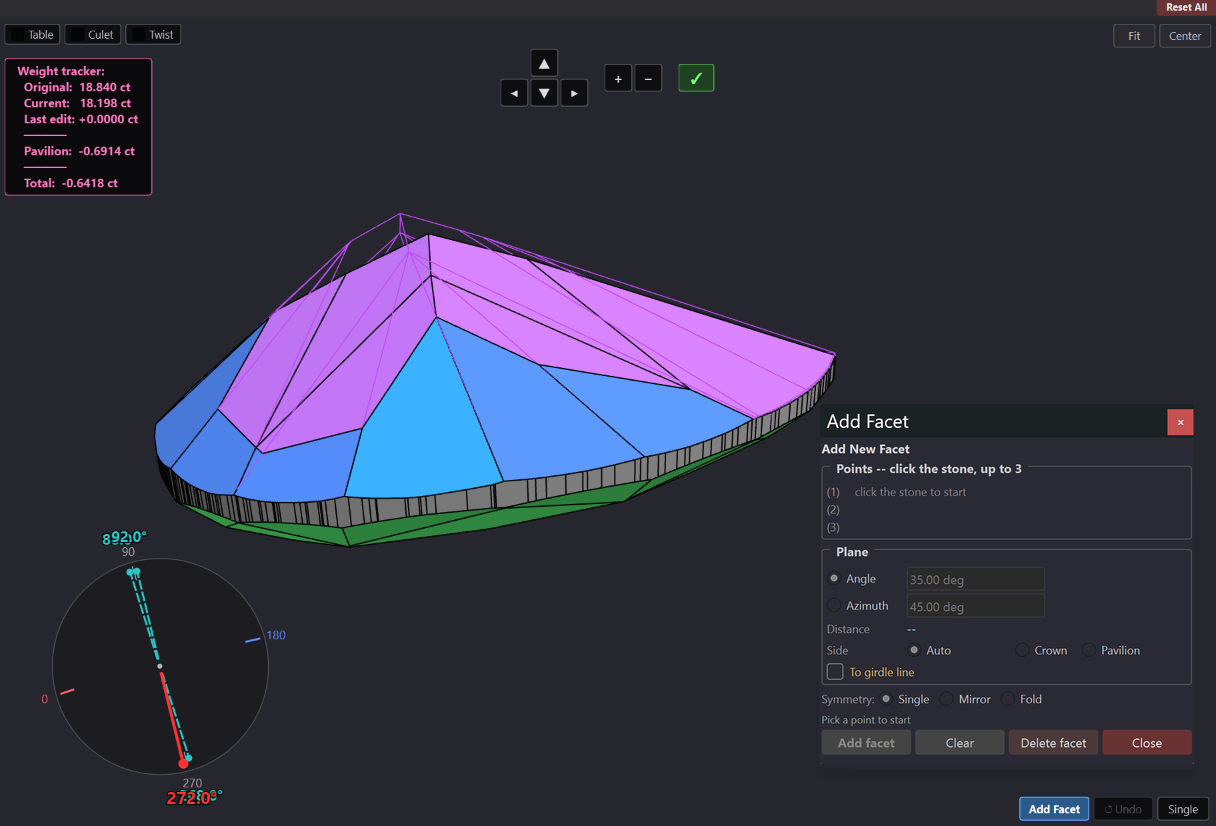
  • ◆ Click any facet and adjust its angle, tilt, or position.
  • ◆ Mirror and fold edits across the stone's symmetry automatically.
  • ◆ Add new facets, or complete a facet to a chosen point.
  • ◆ Delete or hide facets, with full undo / redo.
  • ◆ Live preview — the render updates as you work.
  • ◆ See the original stone over your recut to track exactly what changed.
  • ◆ A running weight tracker so you see the carat impact as you cut.
Facet editing in the 3D viewer, with the Add Facet panel
Shape & girdle

Check the outline, then refine the girdle

The Model Symmetry ring shows where the outline is off. Mark that part of the girdle, thicken it, and watch the ring turn green.
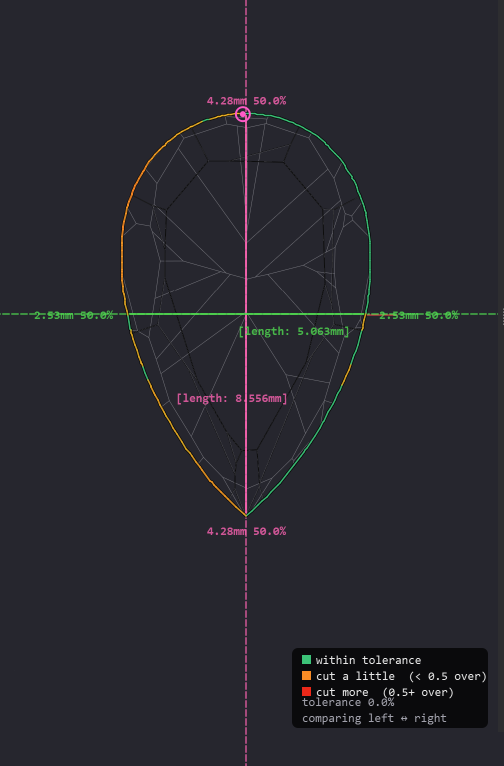
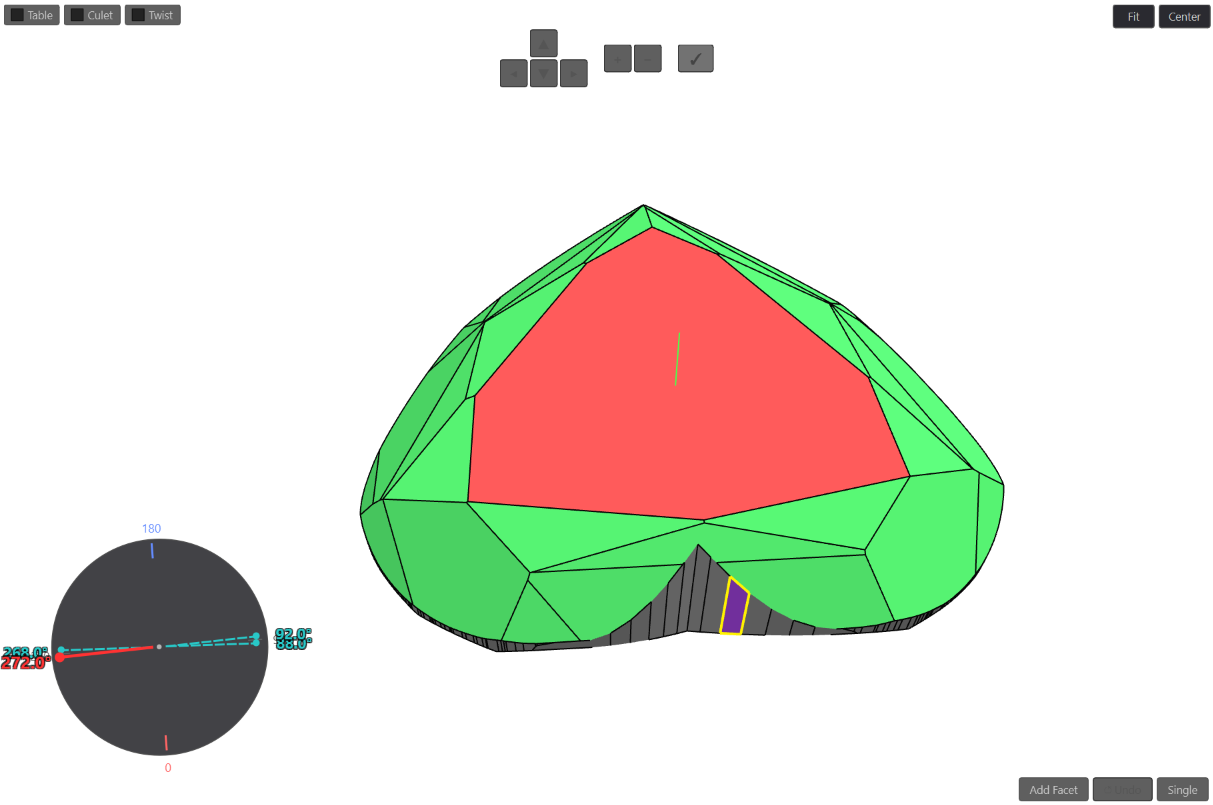
  • ◆ Model Symmetry ring — green, amber and red show how far each side is from its mirror, on the same scale for every stone, pears and hearts included.
  • ◆ Selective girdle thickening — mark the length side, the width side, an arc or the facets you pick, and mirror or fold the change to the matching side.
  • ◆ Set girdle thickness, length‑to‑width ratio, table and depth directly.
  • ◆ Every change to the shape shows exactly what it costs, in millimetres and in carat weight, so you can make an informed decision before you commit.
  • ◆ Girdle line* — draw the crown and pavilion girdle lines and cut facets straight to them.
  • ◆ Need more than reshaping? We add grooves, convert one shape into another and build matched pairs for you.*
Model Symmetry ring on a pear outline: green within tolerance, amber cut a little
Model symmetry — the ring shows where the outline is off: green is within tolerance, amber and red show where to trim
Groove creation
Groove creation* — add a clean groove to hearts and fancy shapes
  • ◆ See exactly how much carat weight a groove removes before you commit.
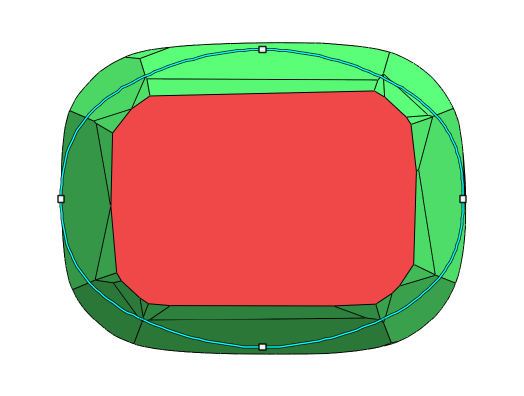
A cushion model with an oval target outline laid over it
Shape conversion* — turn one shape into another. Here a cushion is reworked into an oval: the target outline is laid over the stone and the model is recut to it.
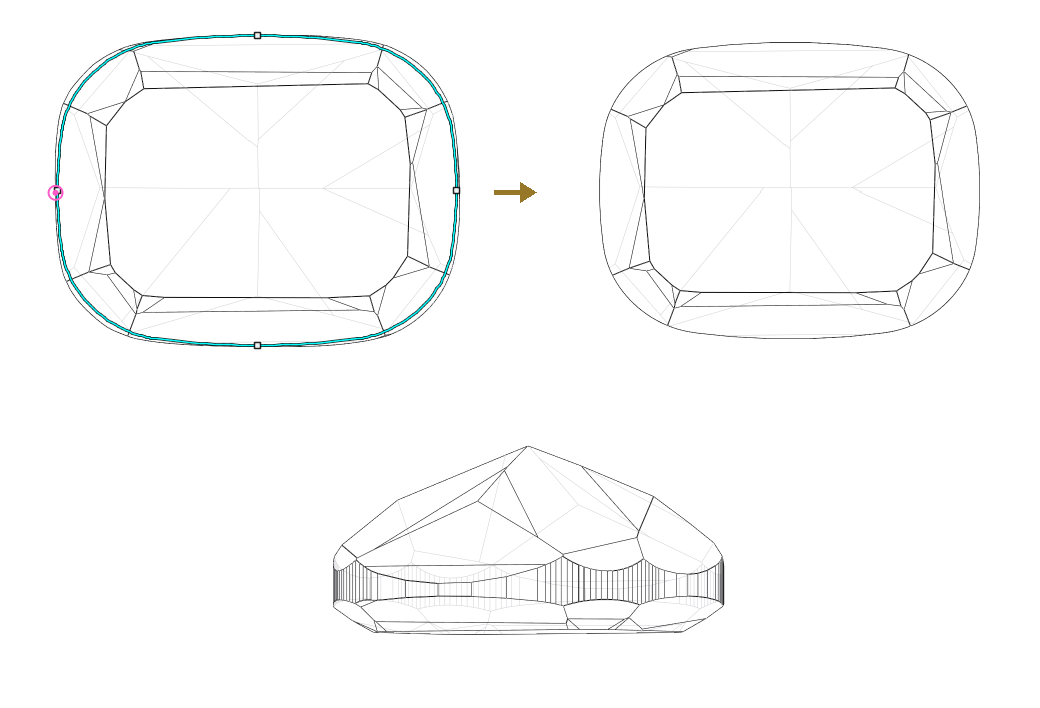
A cushion outline reworked to match its partner, the finished model from above and from the side
Matched pairs* — rework a cushion’s outline to match its partner exactly, and get a clean, precise model ready to load into professional laser‑marking software.
Ink tracing

See where every facet shows face‑up

Mark a facet with ink and the renders show where it appears in the face‑up view, through each of its reflections. No new render needed.
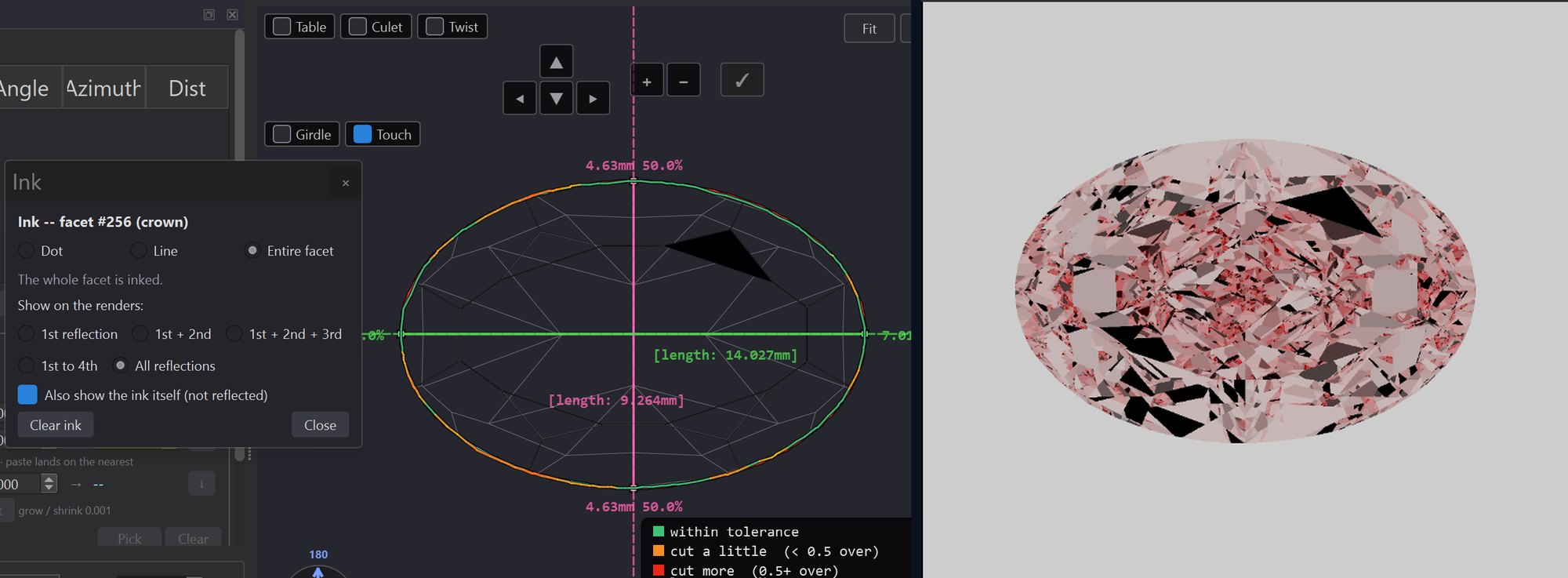
  • ◆ Ink a dot, a line, a whole facet, or the girdle.
  • ◆ Follow its first reflection, or several reflections at once.
  • ◆ Show the ink itself next to its reflections, or the reflections alone.
  • ◆ Click any point on a render to name the facet and the light path behind it.
  • ◆ Ink is saved with the project.
Ink on one crown facet of an oval, with its reflections shown across the face-up render
Ink — one crown facet inked; its reflections appear across the face‑up render
Photoreal renders, 3D & live web view

See the finished stone before it's cut

Produce striking face‑up and full 3D renders, spin them as video, and share a live, interactive 360° view with a single link — nothing for the viewer to install.

  • ◆ Face‑up and full 3D photoreal renders.
  • ◆ Lighting environments: studio, tent, showroom and display, plus Lab View's fixed closed dome for measuring. Load your own HDR maps too.
  • ◆ Fire / dispersion for spectral sparkle.
  • ◆ Animation export — turntable, rock, figure‑8, profile spin — as MP4 or GIF.
  • ◆ A live, spinnable 360° view of your stone, shareable by a single link.
  • ◆ Send us your file and we render the 360° view and return a link to share — for a small fee.*

Photoreal photo rendering runs best on a computer with a dedicated graphics card (GPU); high‑resolution renders and animation are faster on stronger systems. See the PC requirements.
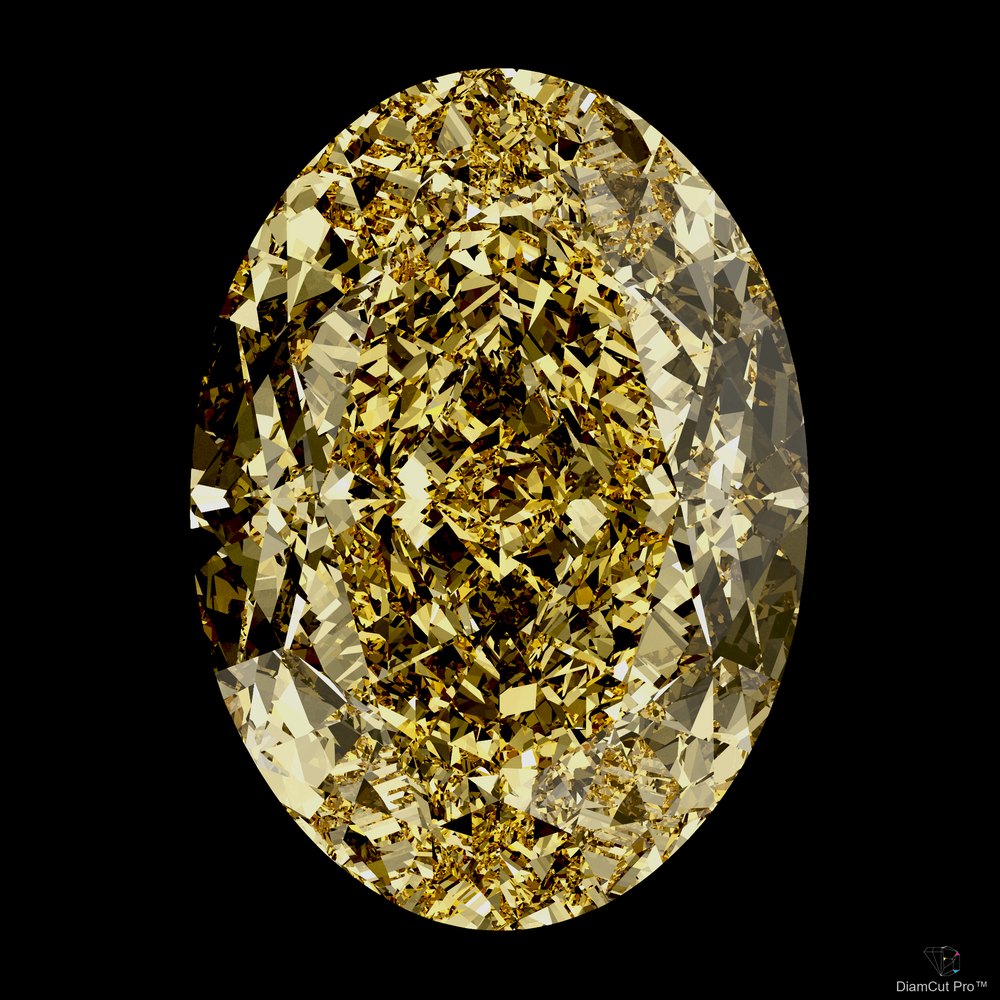
Fancy intense yellow oval under display lighting
Display lighting — a dim room with strong spotlights, like a jeweller’s showcase. Brings out sparkle and contrast.
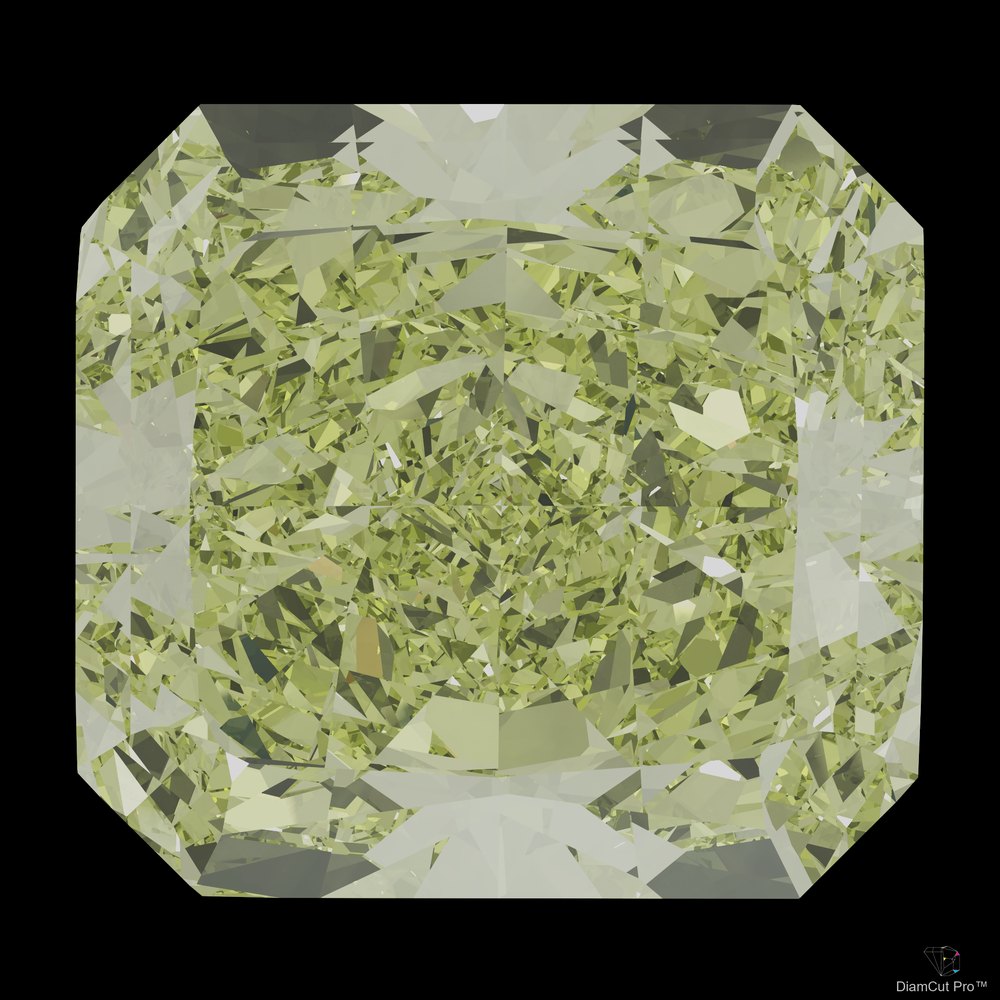
Fancy green yellow radiant under studio lighting
Studio lighting — soft, even light that shows the body colour face‑up, the way a buyer judges it.
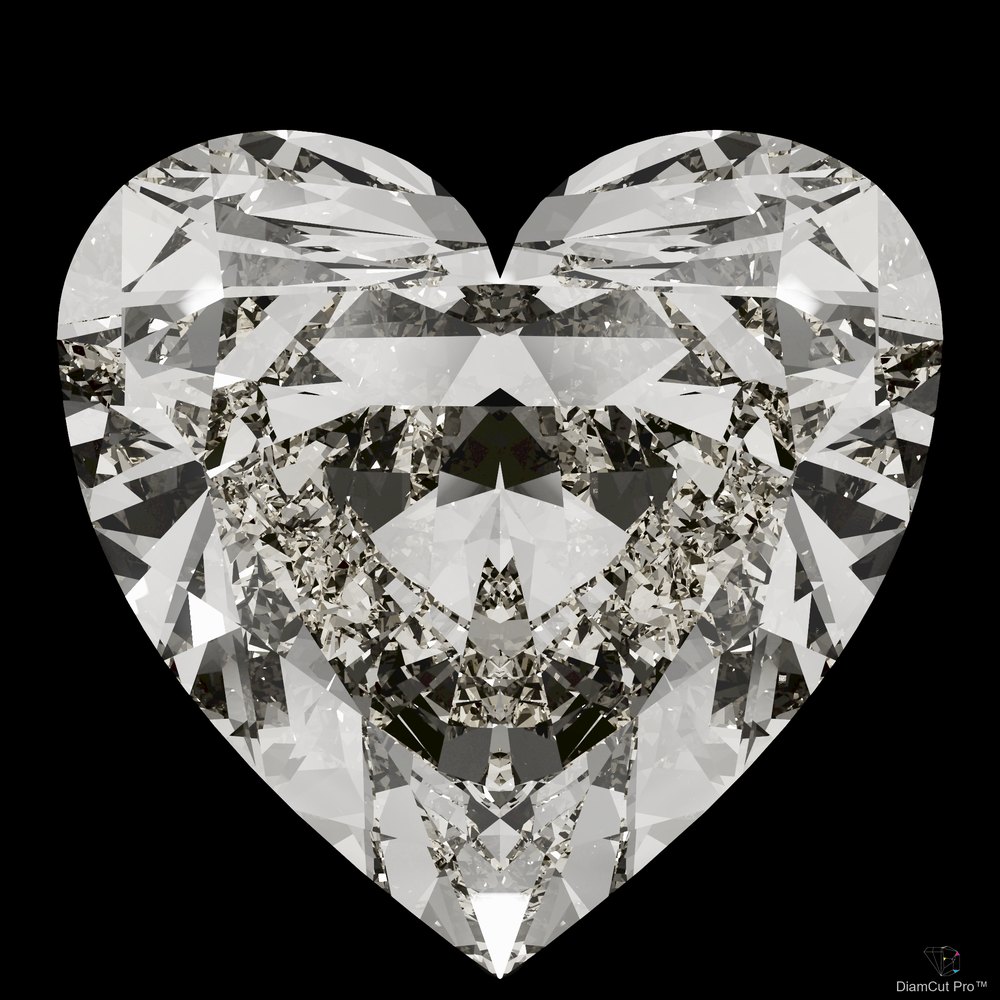
White heart-shaped diamond render
White diamonds — brilliance and pattern for colourless stones.
Fire under display lighting — a white pear and a round brilliant rocking under spotlights. Dispersion splits the light into flashes of spectral colour, the way a stone plays at the counter.
Share & cutting plan

From your screen to your client and your cutter

Two web links, nothing to install. Your client sees the stone you planned. Your cutter sees exactly how to cut it.
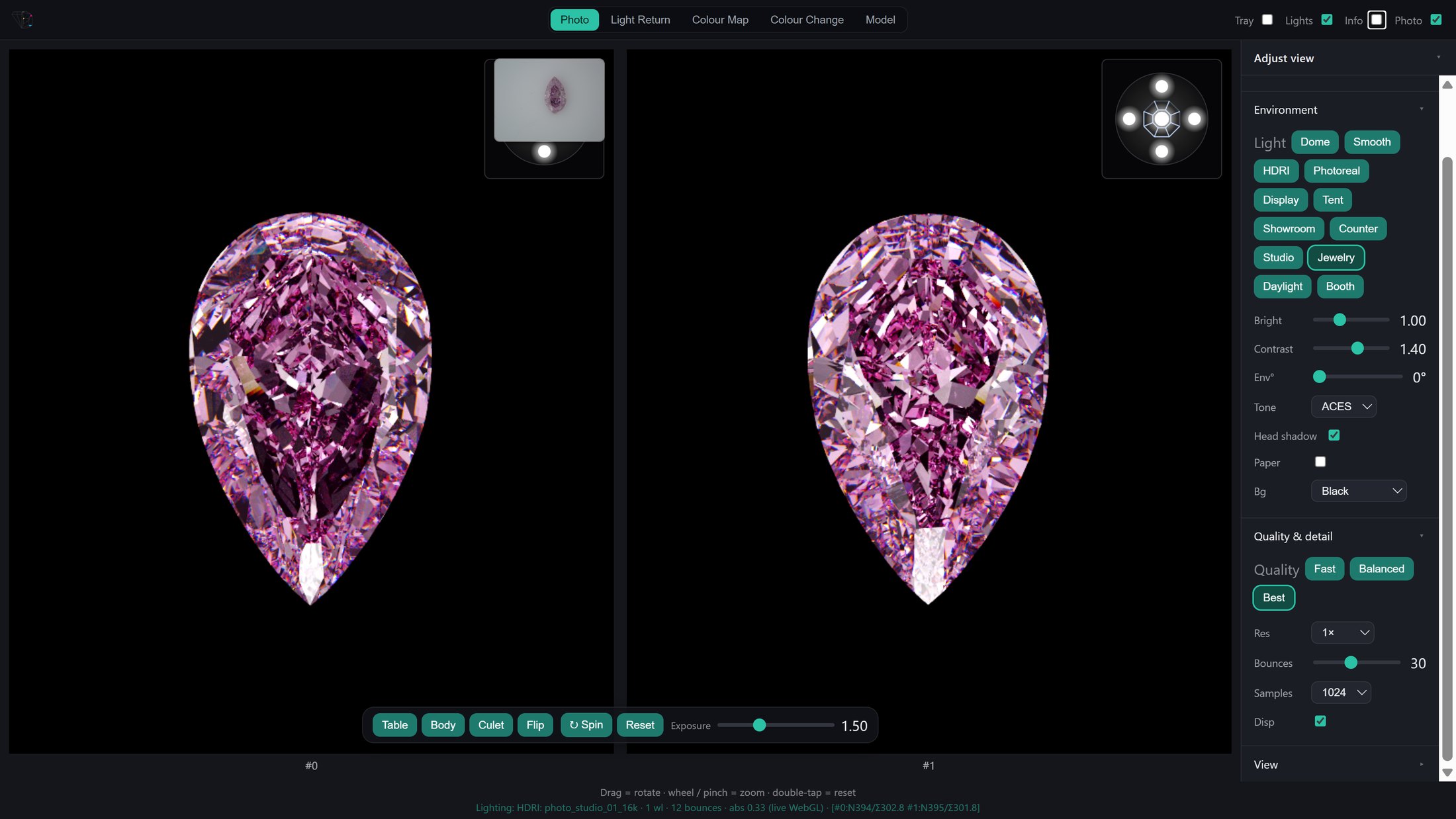
Share link for your clients

  • ◆ Send up to six renders with your notes and a photo of the stone.
  • ◆ Your client compares original and modified side by side in the browser.
  • ◆ They switch between studio, photoreal and display lighting themselves.
  • ◆ Opens on any computer, tablet or phone.

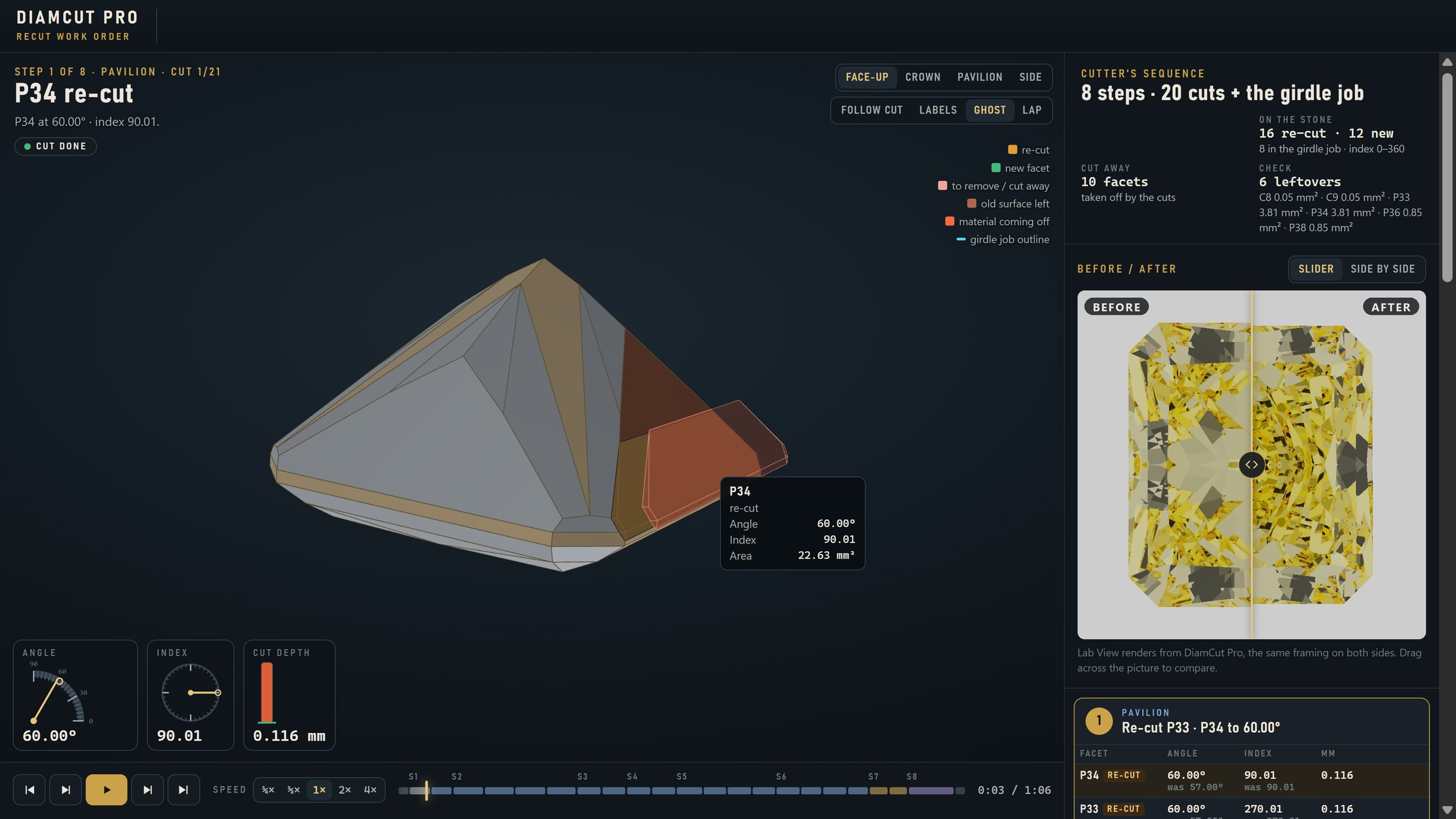
Cutting plan for the wheel

  • ◆ A step‑by‑step work order: every cut in order, with its angle, index and depth.
  • ◆ An animated 3D stone with play, pause and speed controls and labels on every facet.
  • ◆ Before and after pictures with a slider.
  • ◆ Replaces printed cutting instructions. Anyone with the link can open it at the wheel.
Share link: a client's browser view of a pink pear, original and modified side by side
Share link — original and modified, with lighting buttons for the client
Cutting plan: step-by-step recut work order with an animated 3D stone and angle, index and depth gauges
Cutting plan — each cut in order, with gauges and a play bar
Design from scratch

Build a new model on a blank canvas

Start without a scan or a file. Choose a shape and its proportions, and DiamCut Pro creates a clean starting block: a girdle outline, a flat table and a flat floor. Every facet you add cuts into it.
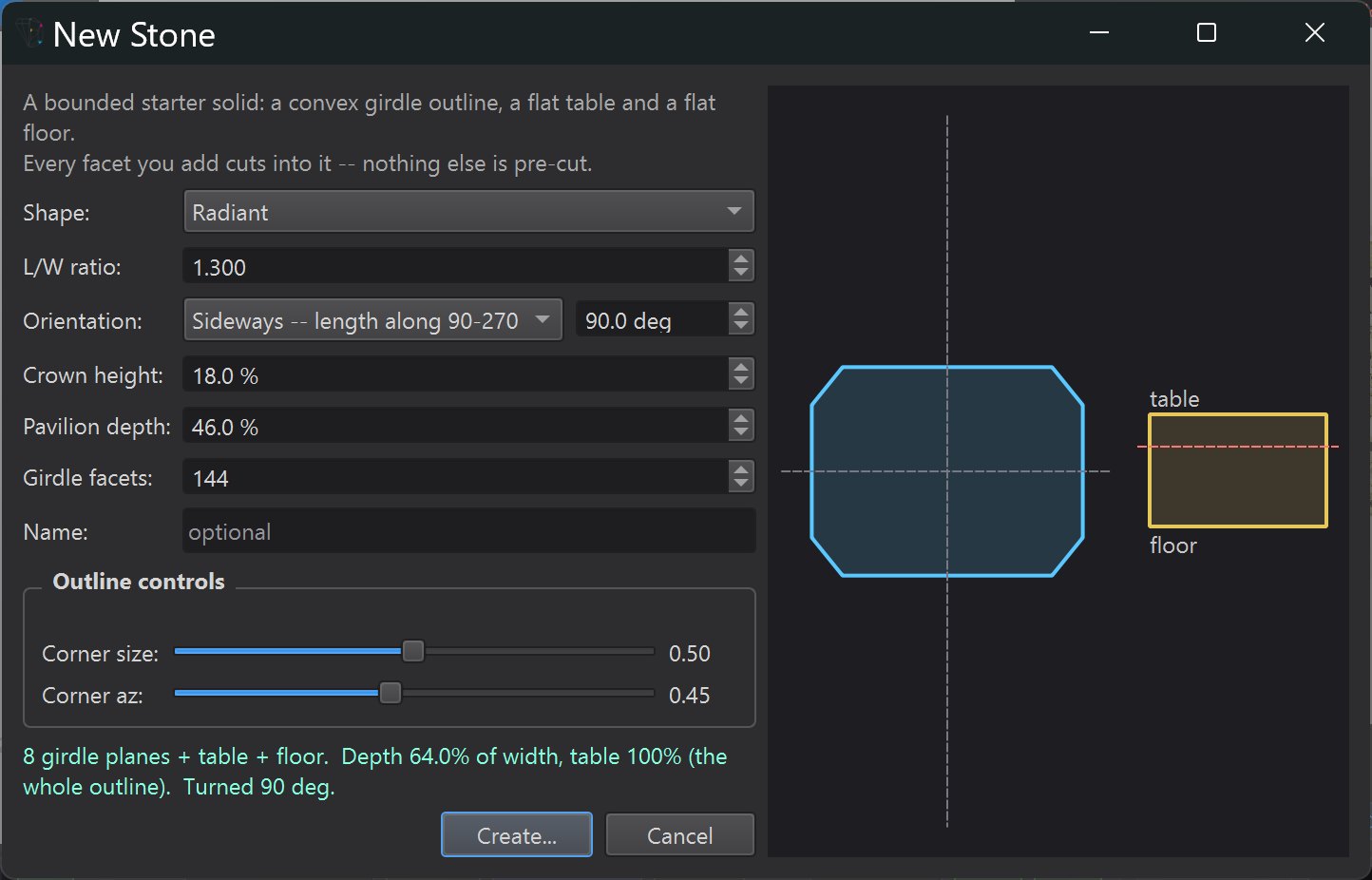
  • ◆ Choose the shape and set the L/W ratio, crown height and pavilion depth.
  • ◆ Shape the outline: corner size and corner angle on cut‑corner stones.
  • ◆ A live preview of the outline and the profile while you set it up.
  • ◆ Then build it facet by facet with the same tools you use on a recut.
New Stone dialog: radiant shape, L/W ratio, orientation, crown height, pavilion depth and outline controls with a live preview
New Stone* — set the shape and proportions, then start cutting

Make DiamCut Pro your go‑to editing software

It fits the way you already work — bring stones in from the tools you use, take finished results out.

Import & export industry‑standard files Save complete projects to reopen later Live online cutting instructions
Services & add-ons

Beyond the software

Optional paid services from Diam Art Ltd — separate from the DiamCut Pro application and available for an additional fee.

Paid add-on

DiamColor integration

Pair your DiamCut Pro work with the DiamColor color service for an added level of analysis and presentation. Offered as a paid add-on.

By arrangement

Done‑for‑you models

Some advanced work is not part of the software itself. Send us your stone file and we do the work for you, returning a finished DiamCut Pro project (.dcpro) — for an additional fee.

See it run

What's new in 4.17.0

Five minutes on a real stone: starting a new stone, the girdle line, and Display view.

More videos on the DiamCut Pro channel

Available Now

Try it on your own stones

DiamCut Pro runs on Windows and macOS. Tell us a little about yourself and the stones you cut, and we'll get back to you about access.

More features are on the way. DiamCut Pro is updated regularly, and updates install from inside the app.

Request information

Request information

Leave your details and we'll be in touch.

We'll only use your details to get back to you about DiamCut Pro.

✓

Thank you

Your request has been received — we'll be in touch soon.

* Paid service or licensed add-on, offered separately from the software.

Disclaimer. Any color improvement shown in DiamCut Pro is an estimate provided for guidance only — it is not an official color grade. DiamCut Pro is a planning and visualization tool; it does not issue grades and does not guarantee any grading result. Final color grades are determined exclusively by the grading lab. Some features and services described on this page are not included in the software and are offered separately by Diam Art Ltd for an additional fee.

PC requirements

DiamCut Pro renders every change with a physically based ray tracer. An NVIDIA graphics card (GPU) does that work many times faster than the processor alone.

Operating systemWindows 10 or 11, 64‑bit
Mac with Apple Silicon (M1 or later)
Graphics cardRecommended: NVIDIA GeForce GTX 10‑series or newer; an RTX card for the best speed. Current NVIDIA driver (525 or later).
ProcessorA modern multi‑core processor, 4 cores or more. More cores render faster on the processor.
Memory8 GB minimum, 16 GB recommended
Screen1920 × 1080 or larger
Disk1 GB free space
InternetNeeded for activation, colour metrics and share links
No NVIDIA card? On AMD or Intel graphics, and on every Mac, DiamCut Pro renders on the processor. Everything works, but rendering is much slower, especially high‑resolution renders and animations.